ArcGIS Pro provides a user-friendly interface to manage Python environments with the Python Package Manager; a tool that can create, clone, activate and remove Python environments. However in some instances, the Manage Environment dialog does not allow cloning or creating a new environment.
As a workaround, Python environments can be cloned using the Python Command Prompt. Use the instructions provided in this article.
Procedure
- Run the Python Command Prompt as an administrator.
- Click the Start icon.
- Navigate to the ArcGIS folder.
- Right-click Python Command Prompt > More > Open file location.
- Right-click Python Command Prompt and click Run as administrator.
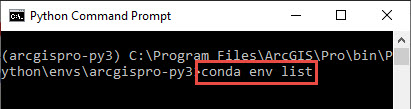
- Search for all the available Python environments by entering the following command:
conda env list
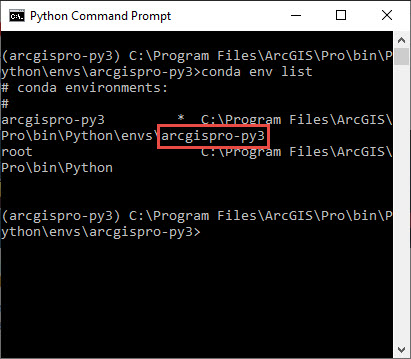
- Identify the name of the Python environment to clone. In this example, the environment to be cloned is arcgispro-py3.
- Clone the environment by entering the following command:
conda create --clone <environment to clone> --name <new environment name> --pinned
Note:
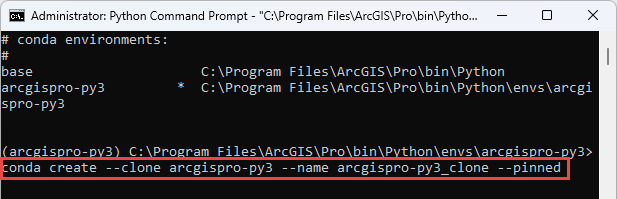
For this example, the command is: conda create --clone arcgispro-py3 --name arcgispro-py3_clone --pinned
Alternatively, to clone the environment to a specific directory path, enter the command as:
conda create --clone <environment to clone> -p <path><new environment name> --pinned
Note:
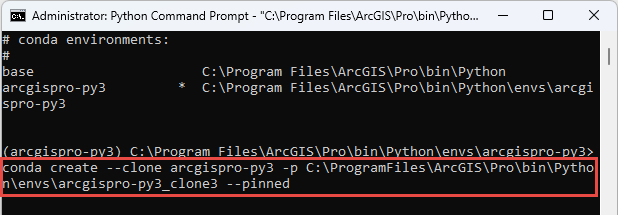
For this example, the command is: conda create --clone arcgispro-py3 -p C:\ProgramFiles\ArcGIS\Pro\bin\Python\envs\arcgispro-py3_clone3 --pinned
source How To: Clone a Python Environment with the Python Command Prompt
 ArcGis交流群