
个人首页: VON
鸿蒙系列专栏: 鸿蒙开发小型案例总结
综合案例 :鸿蒙综合案例开发
鸿蒙6.0:从0开始的开源鸿蒙6.0.0
鸿蒙5.0:鸿蒙5.0零基础入门到项目实战
本文章所属专栏:Electron for OpenHarmony
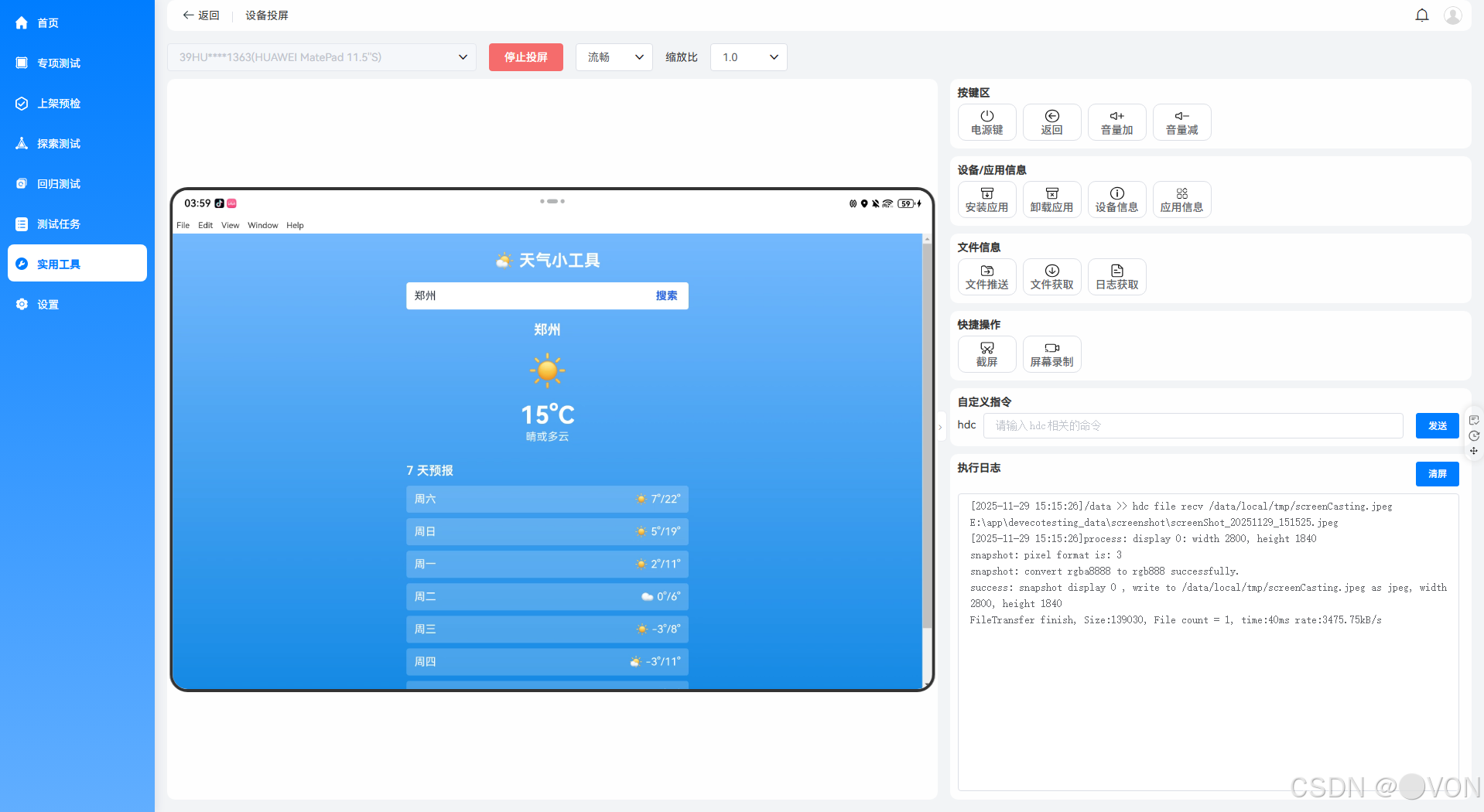
天气桌面小工具
- 前言
- 一、为什么选择 Electron 做天气工具?
- 二、技术选型
- 三、项目结构
- 四、完整代码实现
- 1. `package.json`
- 2. `main.js` —— 主进程(创建窗口 + 托盘)
- 3. `index.html` —— UI 界面
- 4. `renderer.js` —— 核心逻辑
- 五、运行与打包
- 开发运行
- 打包为可执行文件(可选)
- 测试
- 六、功能亮点
- 七、扩展建议
- 八、结语

前言
摘要:本文将带你从零开始,使用 Electron + 免费天气 API(Open-Meteo)构建一个轻量级、跨平台的桌面天气小工具。项目支持自动定位、城市搜索、7 天预报,并具备系统托盘常驻、低资源占用等桌面应用特性,适合初学者掌握 Electron 网络请求、本地存储与 UI 交互开发。
一、为什么选择 Electron 做天气工具?
- ✅ 跨平台:一套代码运行于 Windows / macOS / Linux
- ✅ Web 技术栈:用熟悉的 HTML/CSS/JS 快速开发
- ✅ 系统集成:可常驻托盘、支持通知、访问剪贴板
- ✅ 离线可用:缓存上次查询结果,弱网也能看
相比网页版天气,桌面端能提供更沉浸、更低干扰的体验。
二、技术选型
| 模块 | 选型 | 说明 |
|---|---|---|
| 主框架 | Electron 28+ | 最新稳定版 |
| 天气 API | Open-Meteo | 免费、无 Key、支持全球坐标 |
| 定位服务 | navigator.geolocation | 浏览器原生 API(Electron 支持) |
| 数据存储 | localStorage | 轻量级,保存最近城市 |
| UI 样式 | Tailwind CSS CDN | 快速美化界面 |
Open-Meteo 示例请求:
https://api.open-meteo.com/v1/forecast?latitude=39.9&longitude=116.4&daily=temperature_2m_max,temperature_2m_min,weathercode&timezone=Asia/Shanghai
三、项目结构
weather-desktop/
├── main.js                # 主进程:窗口 + 托盘管理
├── index.html             # 渲染进程:UI 界面
├── renderer.js            # 前端逻辑:定位、API 调用、渲染
├── styles.css             # 自定义样式(或使用 Tailwind)
├── package.json
└── README.md
四、完整代码实现
1. package.json
{
"name": "weather-desktop",
"version": "1.0.0",
"main": "main.js",
"scripts": {
"start": "electron ."
},
"devDependencies": {
"electron": "^28.0.0"
}
}
2. main.js —— 主进程(创建窗口 + 托盘)
const { app, BrowserWindow, Tray, Menu, nativeImage } = require('electron');
const path = require('path');
let mainWindow;
let tray = null;
function createWindow() {
mainWindow = new BrowserWindow({
width: 400,
height: 500,
resizable: false,
webPreferences: {
contextIsolation: true
}
});
mainWindow.loadFile('index.html');
// 开发时打开 DevTools
// mainWindow.webContents.openDevTools();
mainWindow.on('closed', () => {
mainWindow = null;
});
}
// 创建系统托盘
function createTray() {
const iconPath = path.join(__dirname, 'icon.png'); // 可选:准备一个天气图标
tray = new Tray(nativeImage.createFromPath(iconPath) || nativeImage.createEmpty());
const contextMenu = Menu.buildFromTemplate([
{ label: '显示', click: () => mainWindow.show() },
{ label: '退出', click: () => app.quit() }
]);
tray.setToolTip('天气小工具');
tray.setContextMenu(contextMenu);
tray.on('click', () => mainWindow.show());
}
app.whenReady().then(() => {
createWindow();
createTray(); // 启动托盘
});
app.on('window-all-closed', () => {
if (process.platform !== 'darwin') app.quit();
});
注:若无
icon.png,托盘将显示空白图标,不影响功能。
3. index.html —— UI 界面
<!DOCTYPE html><html lang="zh-CN"><head><meta charset="UTF-8" /><meta name="viewport" content="width=device-width, initial-scale=1.0"/><title>天气小工具</title><script src="https://cdn.tailwindcss.com"></script><style>body { background: linear-gradient(to bottom, #74b9ff, #0984e3); color: white; }.weather-icon { font-size: 3rem; margin: 10px 0; }</style></head><body class="font-sans"><div class="container mx-auto px-4 py-6 max-w-md"><h1 class="text-2xl font-bold text-center mb-4">️ 天气小工具</h1><!-- 城市输入 --><div class="flex mb-4"><input type="text" id="cityInput" placeholder="输入城市名(如:北京)"class="flex-1 px-3 py-2 rounded-l focus:outline-none text-gray-800"><button id="searchBtn" class="bg-white text-blue-600 px-4 py-2 rounded-r font-bold">搜索</button></div><!-- 当前天气 --><div id="currentWeather" class="text-center hidden"><div id="location" class="text-xl font-bold"></div><div class="weather-icon" id="weatherIcon">☀️</div><div id="temp" class="text-4xl font-bold"></div><div id="description" class="opacity-90"></div></div><!-- 7天预报 --><div id="forecast" class="mt-6 hidden"><h2 class="text-lg font-semibold mb-2">7 天预报</h2><div id="forecastList" class="space-y-2"></div></div><!-- 加载/错误提示 --><div id="status" class="text-center mt-4"></div></div><script src="renderer.js"></script></body></html>4. renderer.js —— 核心逻辑
// 天气代码映射(来自 Open-Meteo 文档)
const WEATHER_CODES = {
0: '☀️', 1: '️', 2: '⛅', 3: '☁️',
45: '️', 48: '️',
51: '️', 53: '️', 55: '️',
61: '️', 63: '️', 65: '⛈️',
71: '❄️', 73: '️', 75: '❄️', 77: '️',
80: '️', 81: '️', 82: '⛈️',
85: '️', 86: '️',
95: '⛈️', 96: '⛈️', 99: '⛈️'
};
// 获取地理编码(城市 → 坐标)
async function getCoordinates(city) {
const url = `https://geocoding-api.open-meteo.com/v1/search?name=${encodeURIComponent(city)}&count=1&language=zh&format=json`;
const res = await fetch(url);
const data = await res.json();
if (data.results && data.results.length > 0) {
return data.results[0];
}
throw new Error('城市未找到');
}
// 获取天气数据
async function fetchWeather(lat, lon, timezone = 'Asia/Shanghai') {
const url = `https://api.open-meteo.com/v1/forecast?latitude=${lat}&longitude=${lon}&daily=weathercode,temperature_2m_max,temperature_2m_min&timezone=${timezone}&forecast_days=7`;
const res = await fetch(url);
return await res.json();
}
// 渲染天气
function renderWeather(data, locationName) {
const { daily } = data;
const today = {
temp: Math.round((daily.temperature_2m_max[0] + daily.temperature_2m_min[0]) / 2),
code: daily.weathercode[0],
desc: getWeatherDescription(daily.weathercode[0])
};
document.getElementById('location').textContent = locationName;
document.getElementById('temp').textContent = `${today.temp}°C`;
document.getElementById('weatherIcon').textContent = WEATHER_CODES[today.code] || '❓';
document.getElementById('description').textContent = today.desc;
// 7天预报
let forecastHTML = '';
for (let i = 0; i < 7; i++) {
const date = new Date(daily.time[i]).toLocaleDateString('zh-CN', { weekday: 'short' });
const min = Math.round(daily.temperature_2m_min[i]);
const max = Math.round(daily.temperature_2m_max[i]);
const icon = WEATHER_CODES[daily.weathercode[i]] || '❓';
forecastHTML += `
<div class="flex justify-between items-center bg-white/20 px-3 py-2 rounded">
<span>${date}</span>
<span>${icon} ${min}°/${max}°</span>
</div>
`;
}
document.getElementById('forecastList').innerHTML = forecastHTML;
document.getElementById('currentWeather').classList.remove('hidden');
document.getElementById('forecast').classList.remove('hidden');
}
function getWeatherDescription(code) {
if ([0, 1, 2, 3].includes(code)) return '晴或多云';
if ([51, 53, 55, 61, 63, 65, 80, 81, 82].includes(code)) return '降雨';
if ([71, 73, 75, 77, 85, 86].includes(code)) return '降雪';
if ([95, 96, 99].includes(code)) return '雷暴';
return '未知';
}
// 显示状态
function showStatus(msg, isError = false) {
const el = document.getElementById('status');
el.textContent = msg;
el.className = `text-center mt-4 ${isError ? 'text-red-300' : 'text-yellow-200'}`;
}
// 搜索按钮
document.getElementById('searchBtn').addEventListener('click', async () => {
const city = document.getElementById('cityInput').value.trim();
if (!city) return showStatus('请输入城市名');
try {
showStatus('正在查询...');
const loc = await getCoordinates(city);
const weather = await fetchWeather(loc.latitude, loc.longitude, loc.timezone);
renderWeather(weather, loc.name);
// 保存到 localStorage
localStorage.setItem('lastCity', city);
} catch (err) {
console.error(err);
showStatus('城市未找到或网络错误', true);
}
});
// 回车搜索
document.getElementById('cityInput').addEventListener('keypress', (e) => {
if (e.key === 'Enter') document.getElementById('searchBtn').click();
});
// 页面加载时尝试自动定位
window.addEventListener('load', async () => {
// 优先使用上次城市
const lastCity = localStorage.getItem('lastCity');
if (lastCity) {
document.getElementById('cityInput').value = lastCity;
document.getElementById('searchBtn').click();
return;
}
// 尝试自动定位
if (navigator.geolocation) {
showStatus('正在获取位置...');
navigator.geolocation.getCurrentPosition(
async (pos) => {
try {
const weather = await fetchWeather(pos.coords.latitude, pos.coords.longitude);
// 反查城市名(简化:用坐标代替)
renderWeather(weather, '当前位置');
} catch (err) {
showStatus('定位成功,但天气获取失败', true);
}
},
() => {
showStatus('请手动输入城市');
}
);
} else {
showStatus('浏览器不支持定位,请手动输入城市');
}
});
五、运行与打包
开发运行
npm install
npm start
打包为可执行文件(可选)
npm install -g electron-packager
electron-packager . WeatherApp --platform=win32 --arch=x64 --out=dist
测试
网页端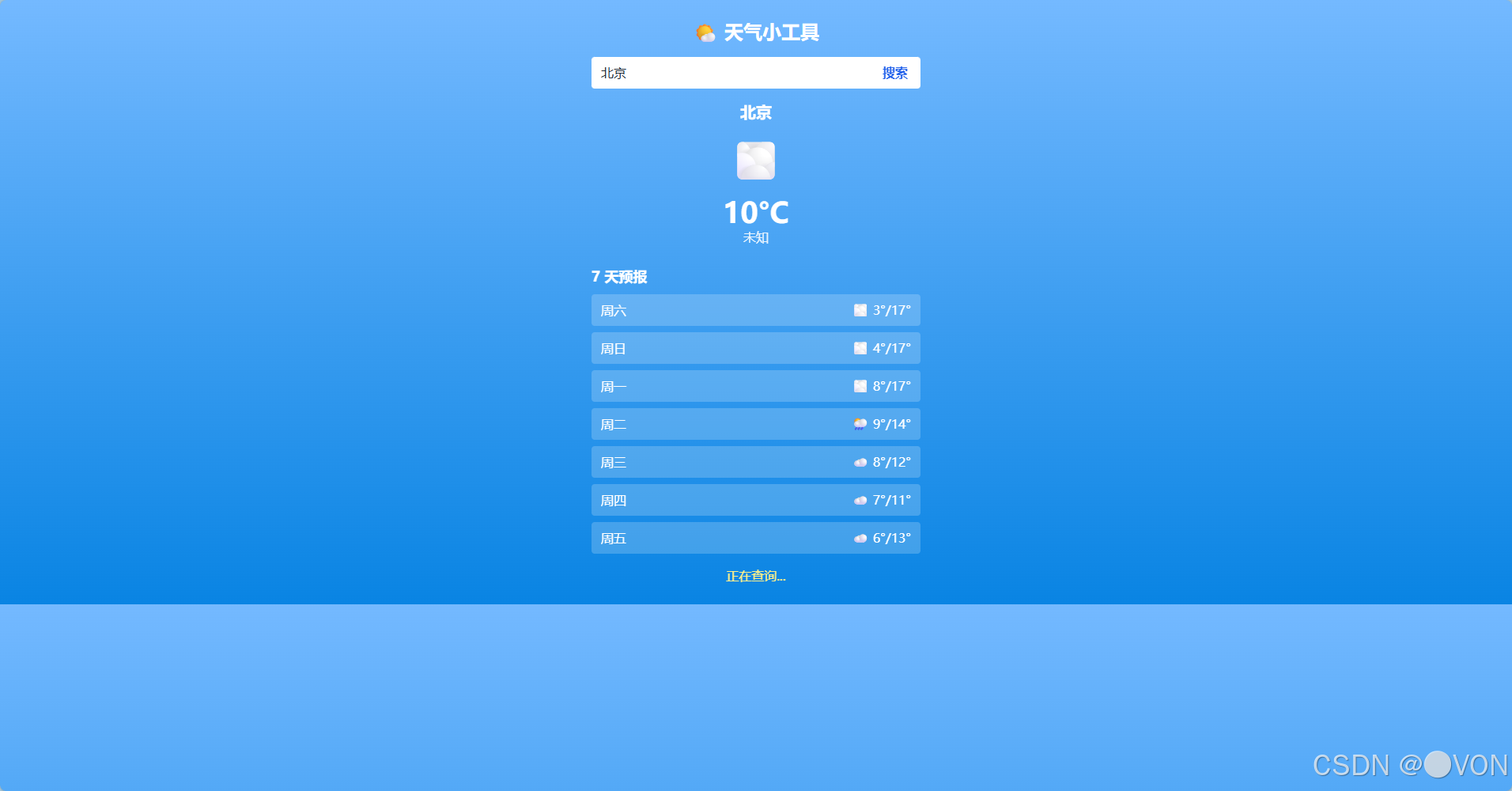
真机端
六、功能亮点
| 功能 | 说明 |
|---|---|
| 自动定位 | 首次启动自动获取当前位置天气 |
| 城市搜索 | 支持中文城市名模糊匹配 |
| 7 天预报 | 直观展示未来一周气温趋势 |
| 本地缓存 | 记住上次查询城市,提升体验 |
| ️ 系统托盘 | 关闭窗口后仍可从托盘唤出 |
| 免费 API | 无需注册 Key,无调用限制 |
七、扩展建议
- 添加“刷新”按钮
- 支持多城市切换(标签页)
- 集成系统通知(高温/降雨提醒)
- 自定义主题(浅色/深色模式)
- 导出天气报告为图片
八、结语
通过这个项目,你不仅学会了如何用 Electron 调用网络 API,还掌握了定位、本地存储、UI 交互、系统集成等关键技能。更重要的是,你拥有了一个真正实用的桌面工具!
代码即产品,创造即价值。